What steps are needed to configure the Wi-Fi-dongle on a Shuttle® curtain track:
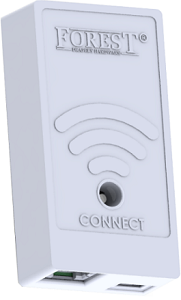
 The Forest Connect app can be downloaded in the Apple App store or Google Play store.


Apple iOs 9.0 or higher
Android OS 4.4 or higher
If after these steps the Wi-Fi-dongle still doesn’t light up, the Shuttle® is not suitable for powering the Wi-Fi-dongle without an external power supply. Connect an external power supply (5V USB adaptor with a Micro-USB cable) to the Micro-USB port on the Wi-Fi-dongle and try again.
Try configuring the Wi-Fi-dongle in Access Point mode using the Forest Connect App.
Yes, you will need to reset the Wi-Fi-dongle by pressing and holding the Connect button on the Wi-Fi-dongle for 10 seconds, open the Forest Connect app and re-connect the Wi-Fi dongle to your Wi-Fi network using the Forest Connect app.
As long as there have been no changes to your Wi-Fi network the dongle will automaticly reconnect, if not you will need to reset the Wi-Fi-dongle by pressing and holding the Connect button on the Wi-Fi-dongle for 10 seconds, open the Forest Connect app and re-connect the Wi-Fi dongle to your Wi-Fi network by adding a “new device”.
Yes, you will need to reset the Wi-Fi-dongle by pressing and holding the Connect button on the Wi-Fi-dongle for 10 seconds, open the Forest Connect app and re-connect the Wi-Fi-dongle to your Wi-Fi network using the Forest Connect app.
Yes, you will need to reset the Wi-Fi-dongle by pressing and holding the Connect button on the Wi-Fi-dongle for 10 seconds, open the Forest Connect app and re-connect the Wi-Fi-dongle to your Wi-Fi network using the Forest Connect app.
No, the data port is specifically designed to be used with the Forest Shuttle motor and is not suitable to be connected directly to your network.
No, the Wi-Fi-dongle needs to be connected to a Wi-Fi network.
Make sure the Wi-Fi-dongle is properly configured and can be controlled using the Forest Connect app and try again.
Yes, the Wi-Fi-dongle will work on a Forest Shuttle with Z-Wave.
Press and hold the Connect button on the Wi-Fi-dongle for 6 seconds till the light turns purple, then release to switch to the Blue flashing.
Press and hold the Connect button on the Wi-Fi-dongle for 6 seconds till the light turns purple, then release to switch to the Blue flashing
The Wi-Fi-dongle is in Easy Connect Mode and ready to be paired to your Wi-Fi network using the Forest Connect app.
The Dongle is in Access Point mode and is ready to be paired to you Wi-Fi network using the Forest Connect app.
The Wi-Fi-dongle has lost the connection to your Wi-Fi network, please reconnect the Wi-Fi-dongle by using the Forest Connect app.
The Dongle has lost communication with the Shuttle®.
- Make sure the Shuttle® is powered
- Make sure the Dongle is properly connected to Port 1 on the Shuttle®
- Make sure the connector cable is functioning properly, try exchanging the cable.
- Make sure the connector cable is no longer than 1.5mtr (5ft)
Press and hold the Connect button on the Wi-Fi-dongle for 10 seconds till the LED turns Orange, release the button and wait a few seconds. LED should start flashing Blue.
Normally the Wi-Fi-dongle is configured using Easy Connect mode (Blue Flashing). This is a userfriendly way of connecting the Wi-Fi-dongle to a Wi-Fi network. If for some reason the Easy Connect mode doesn’t work it is possible to connect the Wi-Fi-dongle to your Wi-Fi network using the Access Point mode (Yellow Flashing) this method of configuring requires more steps and is a bit more complicated.
In order for the Wi-Fi-dongle to function properly the curtaintrack needs to be in a working order which means the start and end position need to be set. If the limits are already set;
No, in order to configure the dongle both your mobile phone or tablet and the Wi-Fi-dongle need to be connected to the same Wi-Fi network.
No, in order to configure the Wi-Fi-dongle your mobile phone or tablet and the Wi-Fi-dongle both need to be connected to the same Wi-Fi network.
No, you will first need to configure the Wi-Fi-dongle using the Forest Connect App, once the configuration is done you are able to add the Wi-Fi-dongle to your Google Home or Amazon Alexa.
The connector cable is a common UTP cable with RJ45 connectors.
Yes, as long as your mobile phone is connected to a Wi-Fi or Cellular network with an active Internet connection you can control the Wi-Fi-dongle from anywhere in the world.
The USB-Cable is a common Micro-USB cable.
The operating temperature is between 0 - 40C (32F-104F).
5 Volt.
The maximum amperage is 1000mA.
The adaptor needs to be 5 Volt 600mA at a minimum.
We highly recommend using the optional Forest USB Adaptor with the Forest Micro-USB cable (Art.no: 520100XXXX) However it is possible to use any adaptor as long as it's 5 Volts and meets the minimum amperage of 600mA the adaptor should not exceed 1000mA.
Yes this can be a suitable power adaptor for the Wi-Fi-dongle as long as it's 5 Volts and meets the minimum amperage of 600mA the adaptor should not exceed 1000mA.
No, this is not recommended.
The USB-Adaptor should be 5 Volt with a minimum of 600mA and a maximum of 1000mA.
Frequency Range: 2400Mhz to 2483MHz (2.4GHz)
Wi-Fi Standard: IEEE 802.11b/g/n (Channel 1 to 14)
The connector cable length should not exceed 1.5 meter (5ft).
Yes, by using Google Home or Amazon Alexa you’ll be able to control the curtains with a voice command.
You can control the Forest Shuttle® M and L.
Yes, as long as there is an active internet connection you can use the dongle from anywhere in the world, this can be a Wi-Fi network, or a cellular network (E, LTE, 3G,4G,5G).
If the Forest Connect App can be found and installed using the Apple App Store or Google Play Store on your tablet, you are able to control the Wi-Fi-dongle with a tablet.
No, once the Wi-Fi-dongle is configured it is not necessary to be close to the Wi-Fi-dongle.
No, the Wi-Fi-dongle needs to be connected to the Cloud in order to function.
Yes, timers can be created using the Forest Connect App.
Yes, this can be configured in the Forest Connect App.
Yes, flows can be created using the Forest Connect App.
Yes, the Wi-Fi-dongle can work alongside the Forest RF Remotes.
It is not possible to control multiple Shuttles with one Wi-Fi-dongle, every Shuttle needs an own dongle.
This can happen due to:
Yes, the Wi-Fi-dongle is compatible with Google Home.
Yes, the Wi-Fi-dongle is compatible with Amazon Alexa
No, if you want to control the Shuttle using Z-Wave please order the Shuttle Z-Wave.
| Z-Wave Shuttle | Frequency | Shuttle M Art.no | Shuttle L Art.no |
| Shuttle Z-Wave India version | 865.2MHz | 5232000010 | 5232000009 |
| Shuttle Z-Wave EU-Version | 868.4MHz | 5232000004 | 5232000002 |
| Shuttle Z-Wave US version | 908.4MHz | 5232000006 | N/A |
| Shuttle Z-Wave AU & NZ Version | 921MHz | 5232000008 | 5232000007 |
No, the Wi-Fi-dongle is not compatible with Apple HomeKit. If you want to control your curtains by HomeKit you will have to use our Wireless Connector in combination with an Apple Homekit compatibel smart plug instead of the Wi-Fi-dongle.



Forest Group (Nederland) B.V. | Teugseweg 42 | 7418 AM
Deventer | The Netherlands
T +31 570622850 | E info@forestgroup.com


